Review and deployment
On Canvas you build in the browser, with the AI. When a change is ready, it does not go live on its own. It is first reviewed and approved, then deployed, and finally promoted through staging to production. The level of review a change needs depends on how risky it is, and your IT Manager sets the rules. This guide walks the whole path.
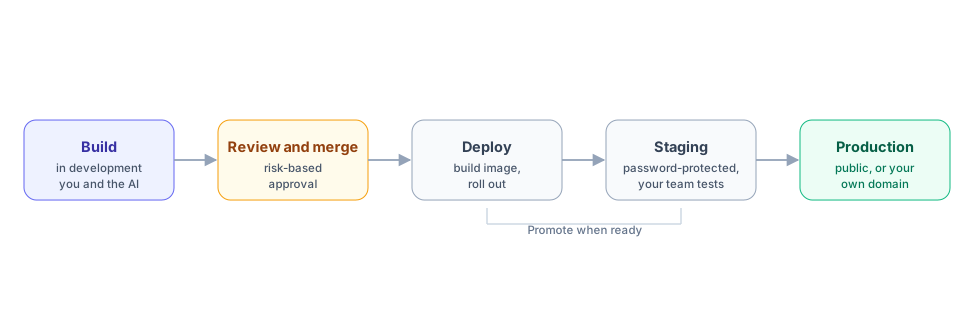
How a change gets reviewed
Section titled “How a change gets reviewed”When you finish a change, the Builder Agent assesses how risky it is: how much it touches, and whether it affects sensitive parts of your app. Based on that, Canvas routes it to one of three levels of review before it can merge.
- Self review. For low-risk changes, you approve your own work and merge.
- Team review. Another builder reviews the change, for a second pair of eyes and alignment.
- Regulated review. For risky changes, an IT Manager or Platform Engineer must approve. This covers anything that touches sensitive ground, for example authentication or the core data schema that your records depend on.
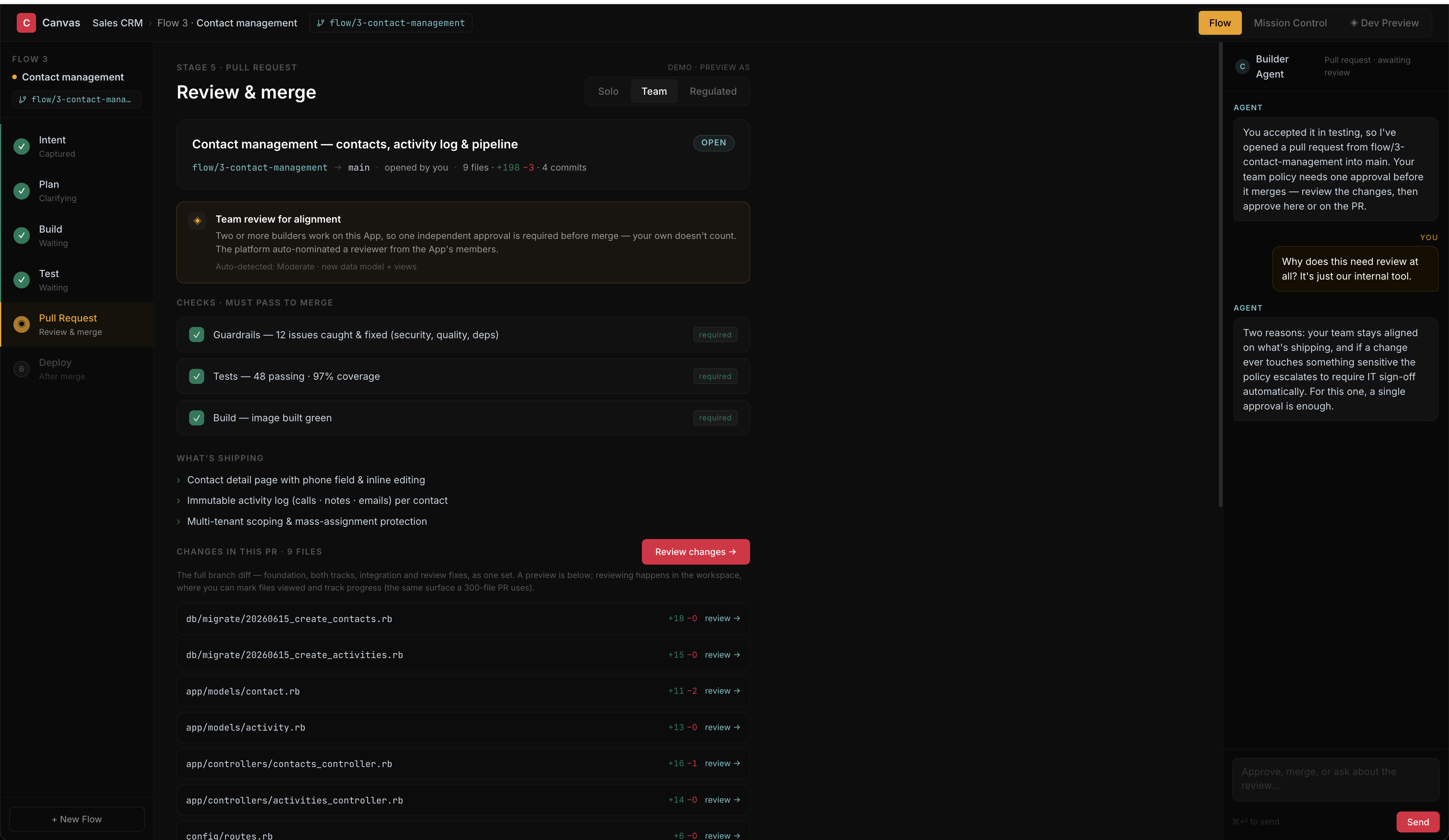
Before anyone approves, Canvas runs automated checks and shows the result: built-in guardrails, your tests, and a successful image build all have to pass. Alongside them you get a plain-language summary of what the change actually ships, so a reviewer does not have to read every line to understand it.
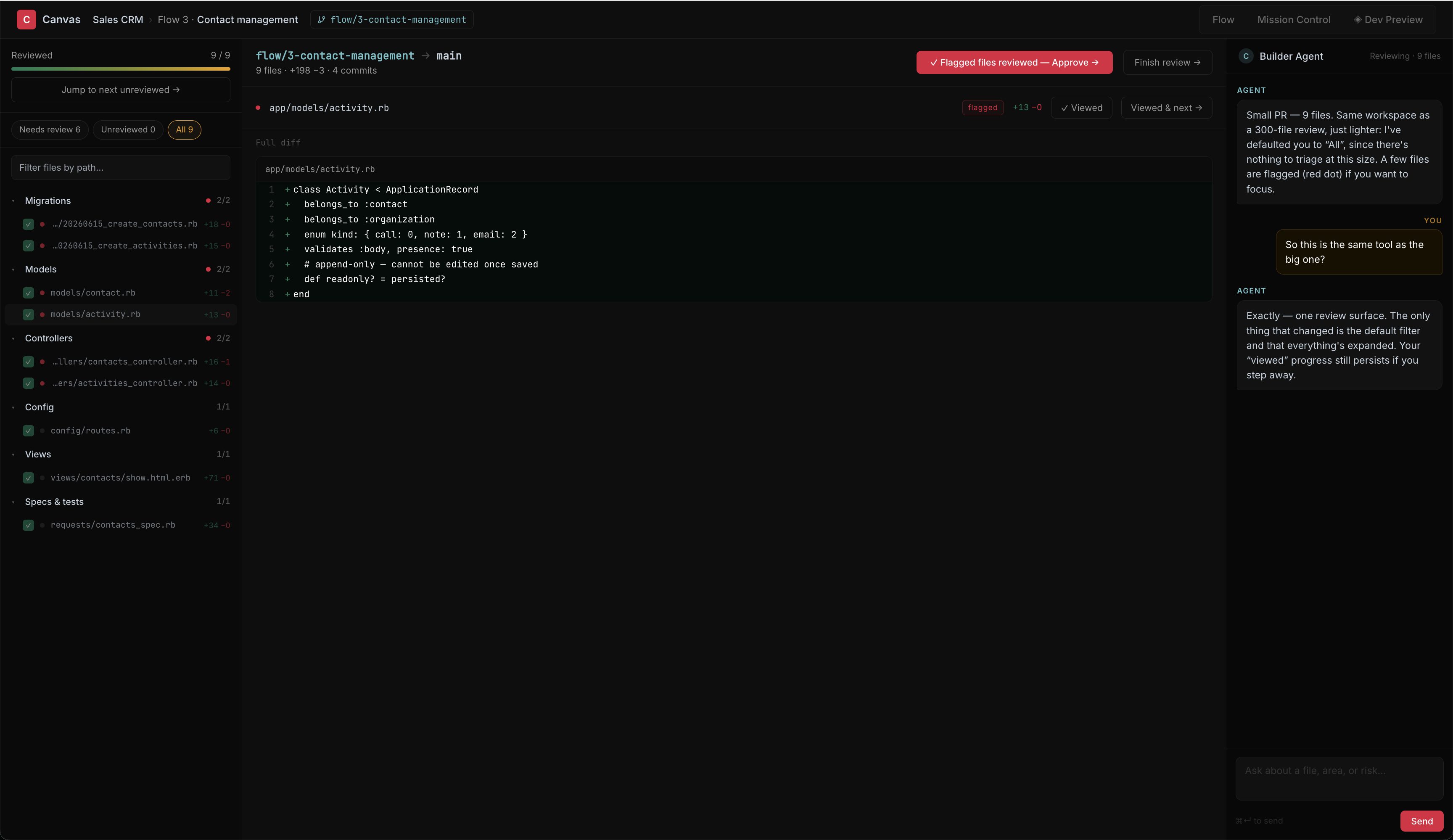
When you do open the change, review happens on one surface for any size of change. You see the files grouped by area, the differences in each, and a running tally of what you have viewed and flagged. The same screen handles a few files or a few hundred. You leave comments, and when you are satisfied you approve and finish the review.
Who sets the review rules
Section titled “Who sets the review rules”The review levels are not fixed by us. Your IT Manager configures them, at two levels:
- At the organization level, setting the default policy for everyone.
- Per app, because apps differ in risk. An internal tool can use lighter review, while a customer-facing or regulated app can require team or regulated review for far more of its changes.
So the same kind of change can need self review in a low-risk app and regulated review in a high-risk one. The policy is yours to tune. See Identity and access for the roles involved, and the Security and trust overview for how this fits the wider control model.
What happens when you deploy
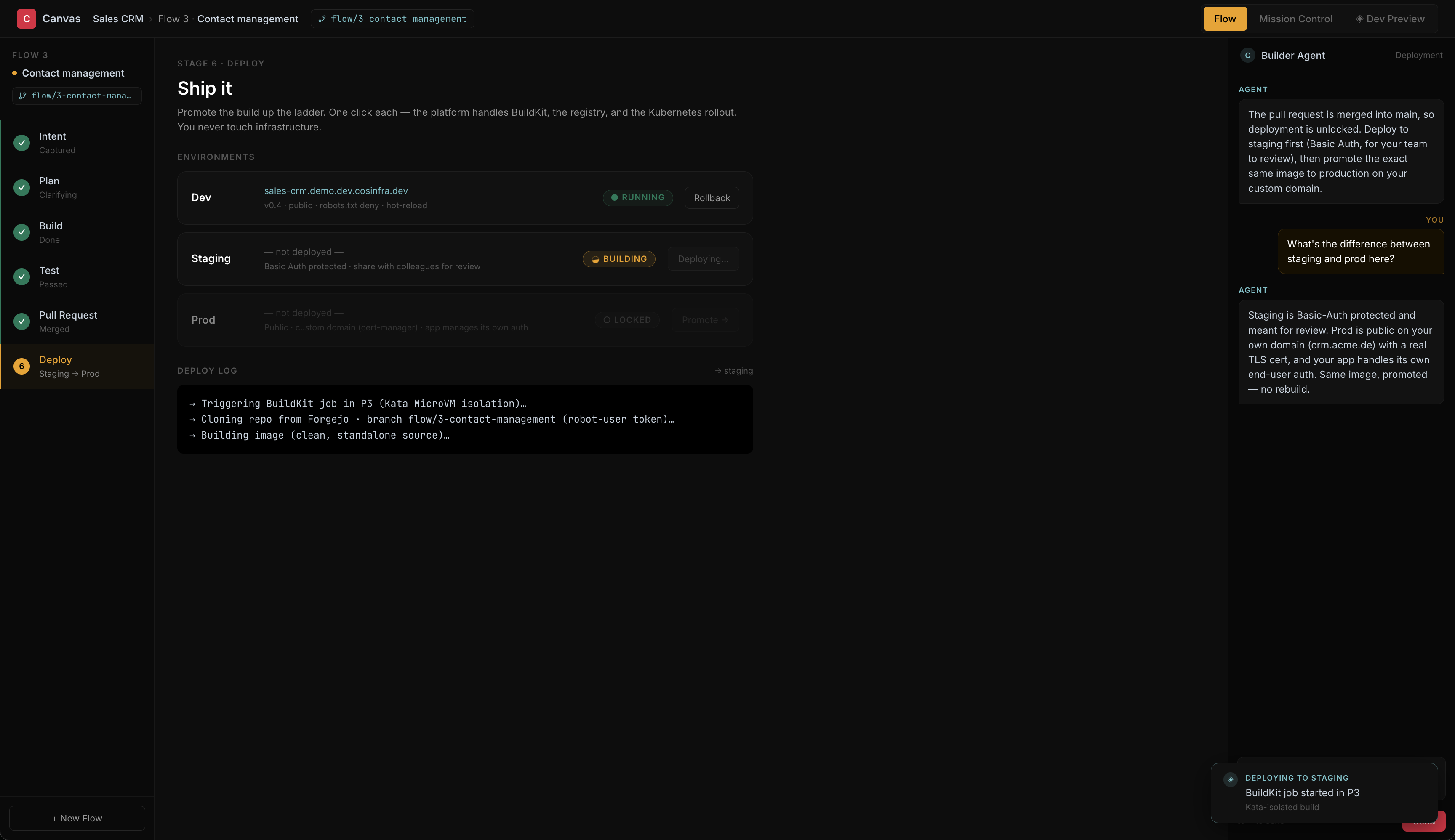
Section titled “What happens when you deploy”Once a change is approved and merged, you deploy it. Canvas builds your app into a container image in an isolated build, then rolls that image out to the environment you chose. You watch the status as it goes: building, then running, or, if something fails, the exact error so you can fix it. Every deployment is recorded.
Environments and promotion
Section titled “Environments and promotion”Every app has three environments, and a change moves up them in order:
- Development is where you build. It gives you a live preview that only your team can see, and it is kept out of search engines.
- Staging is password-protected, for your team to test a change as it will look in production. It is also kept out of search engines.
- Production is the live app: public, or on your own domain.
You promote a change by deploying it to the next environment when it is ready. Who may deploy is limited to the roles you choose, so going to production is a deliberate step, not an accident.
Your code and version control
Section titled “Your code and version control”Everything you build is real code under version control, and it is yours.
- Each change is on its own branch, and every commit is recorded in your name.
- Review and merge happen in the platform. There is nothing to install and no local setup; the review described above produces a real merge into your main line.
- Your full Git history is yours. You can export it at any time. See Data export and portability for how.
Updates and rollback
Section titled “Updates and rollback”Updates roll out gradually, so your app stays available to its users while a new version takes over. Because every deployment is kept in the history, you are never stuck on a bad one: you can roll back by re-deploying a previous version, and your app returns to that known-good state.
Custom domains
Section titled “Custom domains”Production can run on a Canvas-managed hostname or on your own domain. To use your own, add it in the app’s settings and Canvas shows you the exact DNS records to create. Once they are in place, Canvas issues and renews the TLS certificate automatically, so you never manage certificates yourself. See Network and connectivity for the DNS and connectivity detail.
Where this runs
Section titled “Where this runs”Builds run in isolation and your app runs on managed, Kubernetes-based infrastructure hosted in Germany. For the bigger picture of how apps run and where data lives, see Architecture.