Identity and access
Access on Canvas is organized around your organization. Everyone who builds or manages software in your company belongs to one organization, and that organization is the boundary: people see and touch only what belongs to it, never another company’s apps, code, or data.
Within your organization, two roles cover almost everything you need.
| Role | What it can do |
|---|---|
| Builder | Builds and ships software within your organization. This is the default role for everyone on your team. |
| Org Admin | Everything a Builder can do, plus managing people: inviting users, changing roles, suspending and reactivating members, and resetting passwords. |
Two more concepts sit alongside the roles:
- Executives are Org Admins who can grant the most sensitive permissions (managing secrets, guardrails, and break-glass access). Your organization always keeps at least two executives, so no single person can lock the others out.
- Canvas operators are our team. We set up your organization and invite your first Org Admin. After that, you run access yourself.
Your first Org Admin
Section titled “Your first Org Admin”When we provision your organization, we invite one person from your side as the first Org Admin, typically your IT manager. They receive an email with a secure, time-limited link.
Opening that link, they:
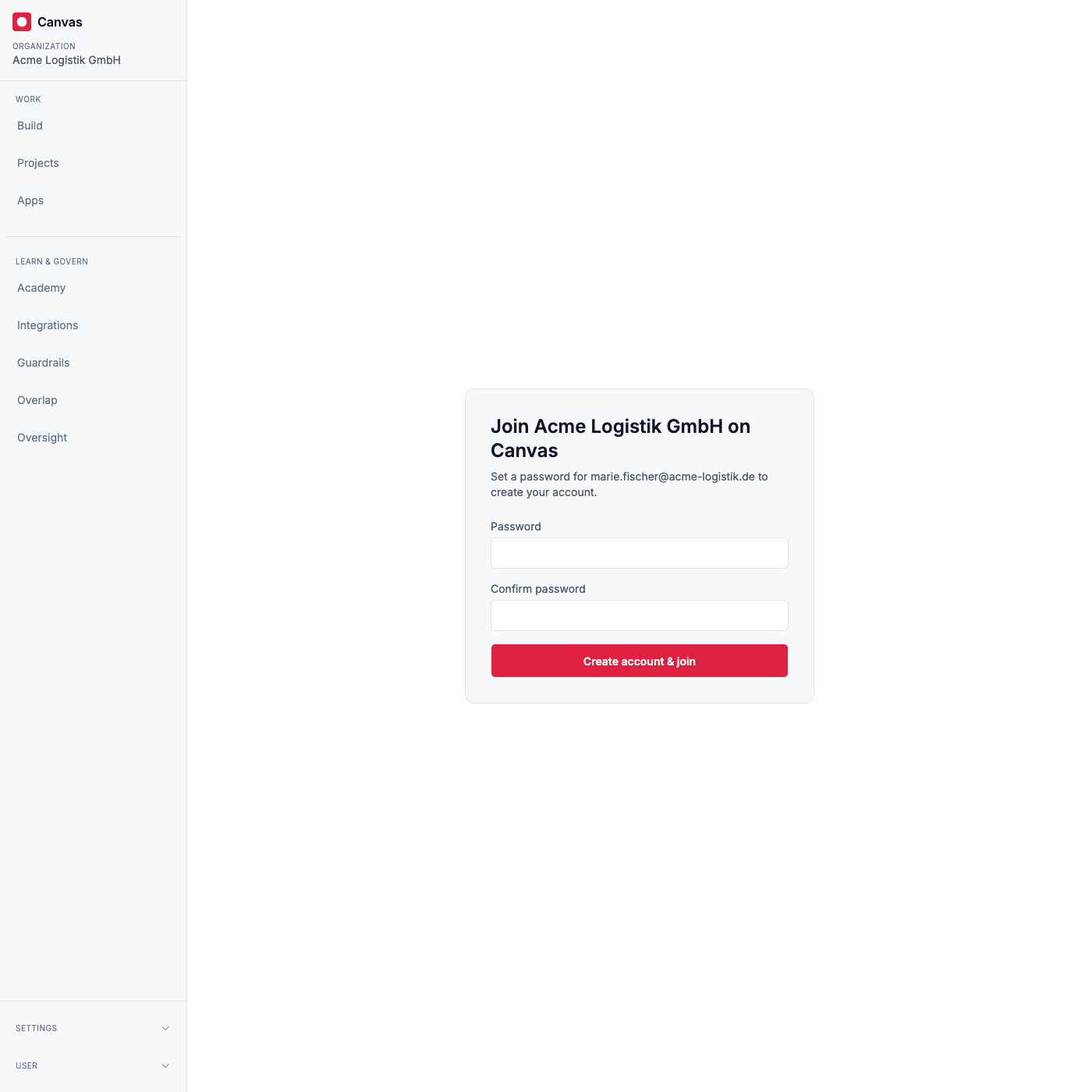
- Set a password for their new Canvas account.
- Land in your organization as an Org Admin.
From this point on, onboarding the rest of your company is self-service. You do not need to come back to us to add people.
Inviting your team
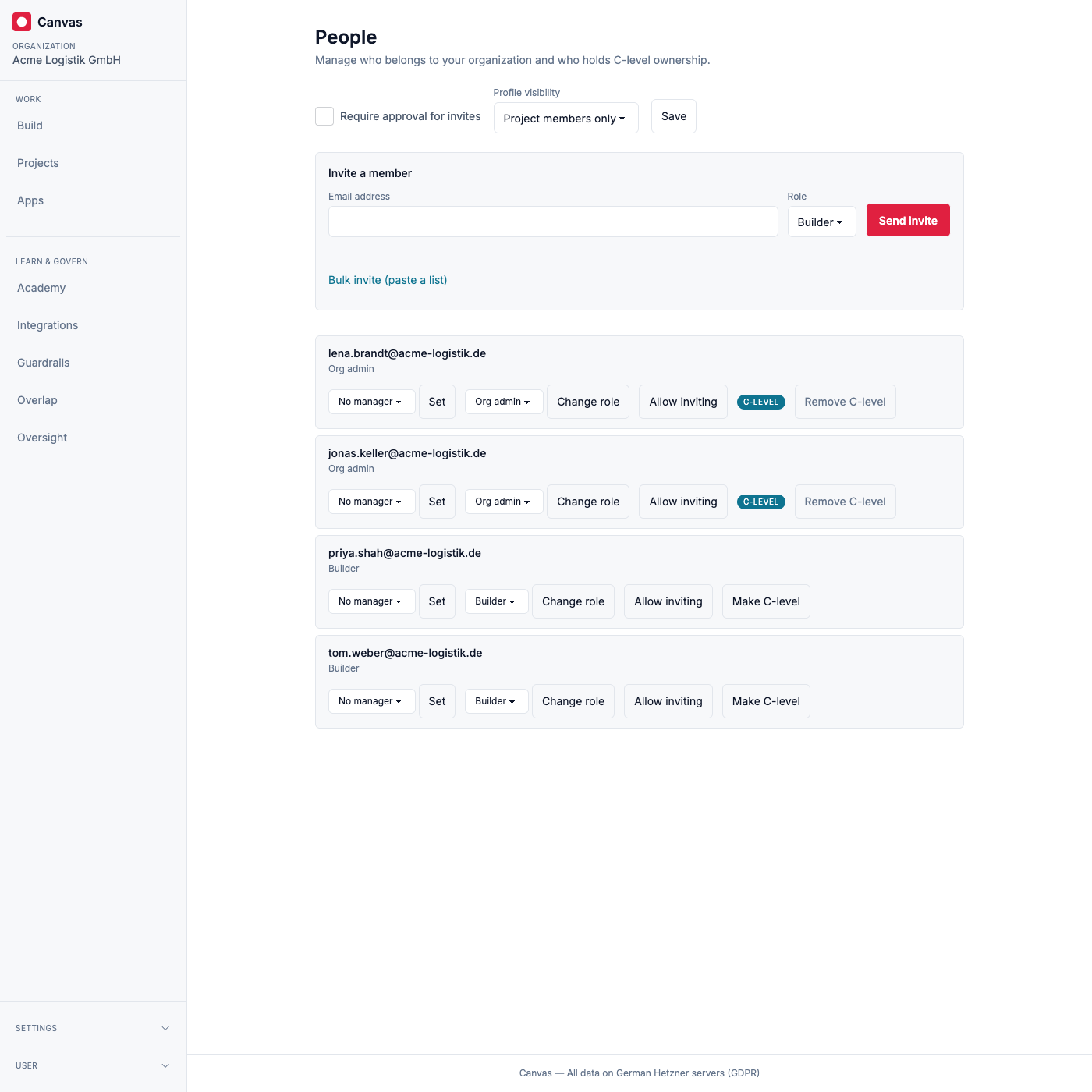
Section titled “Inviting your team”As an Org Admin, you invite colleagues yourself:
- Open the members area for your organization.
- Enter the person’s email address and choose their role, Builder or Org Admin.
- Send the invitation.
The invitee receives an email with a secure link that is valid for seven days. You can invite people one at a time or in bulk.
Accepting an invitation
Section titled “Accepting an invitation”What the invitee does depends on whether they already have a Canvas account:
- New to Canvas: they open the link, set a password, and join your organization in one step.
- Already on Canvas: they open the link, join your organization, and sign in with their existing credentials.
Either way, they become an active member with the role you assigned.
Managing members over time
Section titled “Managing members over time”Org Admins keep full control of their team from the members area:
- Change a role between Builder and Org Admin as responsibilities shift.
- Suspend a member to revoke access immediately, for example when someone leaves a project, and reactivate them later without re-inviting.
- Reset a password for a member who is locked out.
Optional controls
Section titled “Optional controls”Two settings let you tune how invitations work for larger teams:
- Invitation approval. Require that new invitations are approved by an Org Admin before the email goes out. With approval on, invitations from Builders wait in a queue until an admin approves or rejects them.
- Delegated inviting. Grant a trusted Builder the ability to invite others, without making them an Org Admin.
Signing in
Section titled “Signing in”People sign in to Canvas with their email address and password. Anyone who forgets their password can request a reset link from the sign-in page, and Org Admins can reset a member’s password directly.